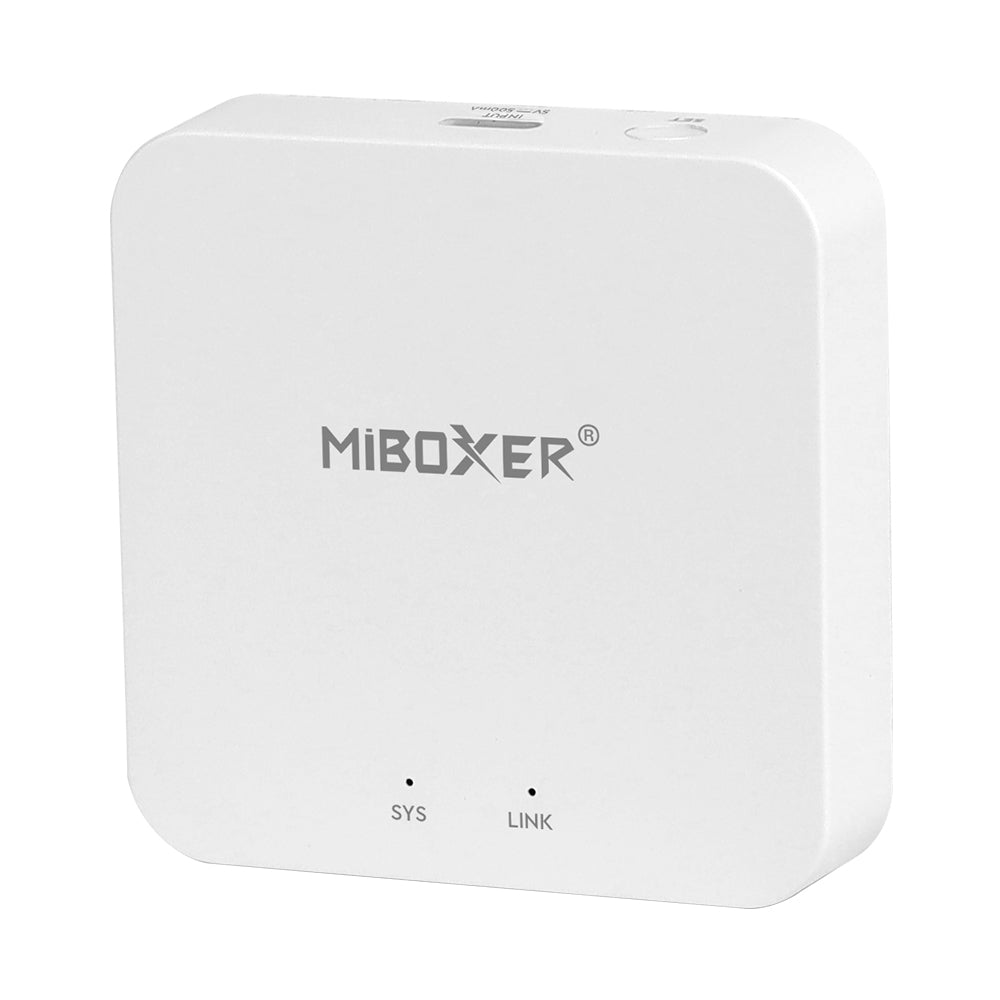
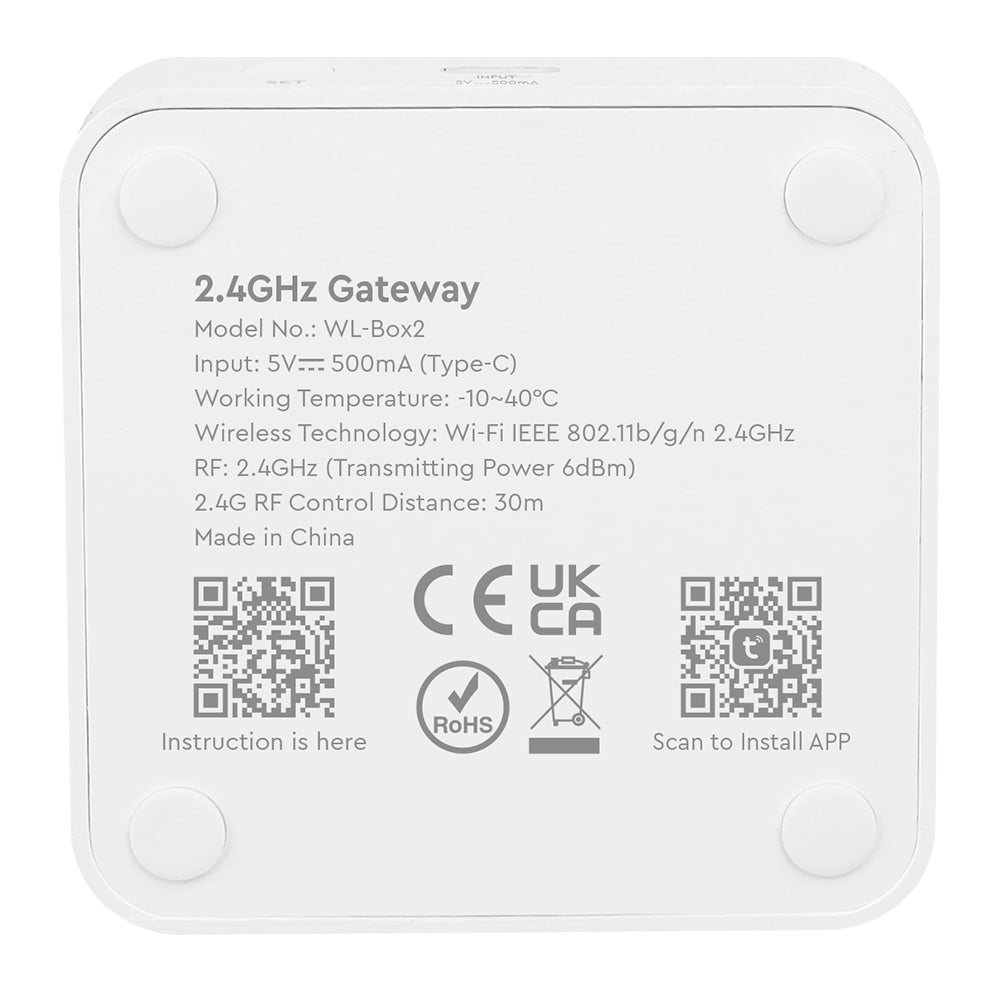
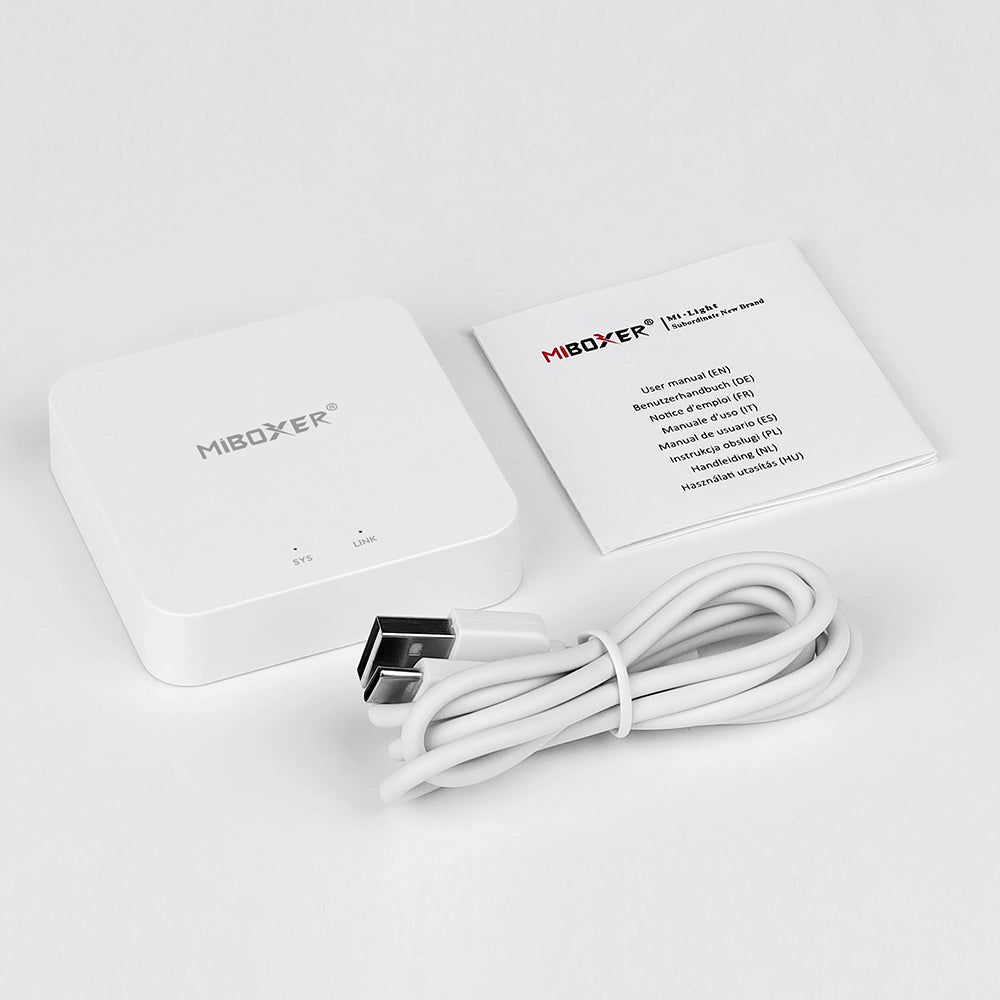
2.4 GHz gateway
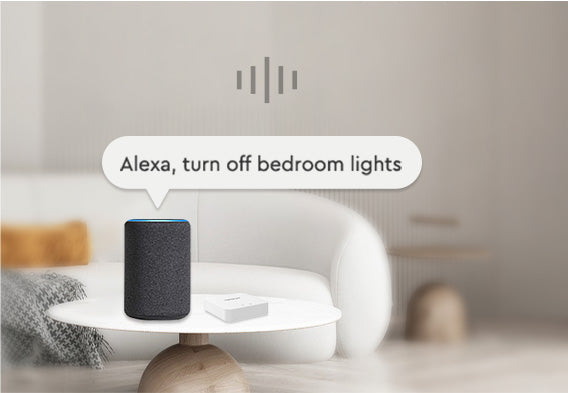
"Tuya Smart" app remote control support Third-party voice control support (Alexa and Google Home)
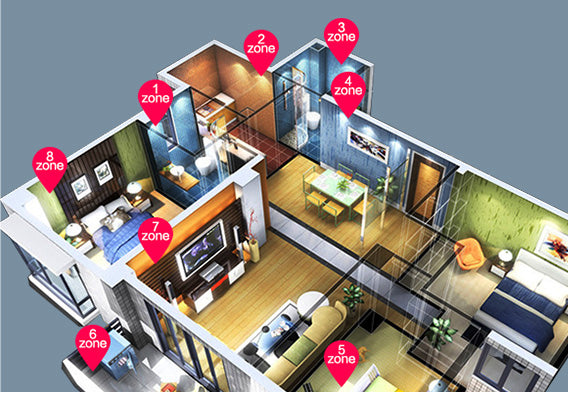
100-zone control
Timer and automation
Do Not Disturb mode
TUYA SMART App
Remote control by zone
Control up to 100 zones individually
Frequently Asked Questions
In the box you will find the user manual and/or a QR code that will take you to the user manual.
Connect the gateway to a power outlet. Open the Tuya Smart app, select "Add device" and follow the instructions to connect the gateway to your 2.4GHz Wi-Fi network.
Make sure you are using a 2.4GHz network and not a 5GHz one. Verify that the Wi-Fi password is correct. Try restarting the gateway and the router.
Open the Tuya Smart app, select the gateway, and choose "Set Up". Select a zone and pair the device (You can only pair one device per zone). Follow the instructions to pair the RF device with the gateway.
Make sure the RF device is in pairing mode. Verify that you are near the gateway during pairing and that there is no interference.
It may be due to a weak Wi-Fi signal. Try moving the gateway closer to the router. Make sure there aren't too many devices connected to the same network.
Make sure the gateway and RF devices are correctly paired. Check the gateway's internet connection. Restart the Tuya Smart app.
Yes, as long as the gateway is connected to the Internet, you can control the RF devices from anywhere using the Tuya Smart app.
In the Tuya Smart app, select "Automation" or "Scenes" and follow the instructions to create automations using the gateway and your RF devices.
Yes, in the Tuya Smart app, select "Profile" > "Home Management" > "Add Members" to share control with other users.
Refer to the user manual for specific instructions on how to reset the gateway to factory settings.